How to Build an n8n Approval Workflow Without Slack Duct-Tape
Three ways to build an n8n approval workflow: native Send-and-Wait, Wait-for-Webhook DIY, and a managed approval control layer. Node configs and trade-offs.
By Iiro Rahkonen on
TL;DR: This n8n approval workflow tutorial covers three approaches -- n8n's native Send and Wait for Response node, a DIY Wait-for-Webhook pattern, and a managed approval control layer for n8n workflows. Each section includes node configs and trade-offs so you can pick the right fit for your use case.
Your AI agent just drafted an email to a customer. The tone is fine. The data looks right. But "looks right" is not good enough when your company name is on it. And if your team sends that email without a person reading it, the fallout lands on the team, not the agent.
Someone on the team needs to read that draft, decide if it should go out, and click a button. That is an n8n approval workflow. The concept is simple, but the implementation has real edges once you get past the first workflow -- especially once more than one person is reviewing.
n8n ships useful approval primitives -- including the Send and Wait for Response operation available on Slack, Gmail, Microsoft Teams, Telegram, Discord, WhatsApp, and the built-in Chat node. It handles notification, reviewer response, and resumption on the right branch. The question is what happens around that decision once approvals cross workflows: owner, deadline, escalation, editable review fields, cross-workflow visibility, and a durable decision record. You can model those pieces in n8n. Humangent exists so you do not have to rebuild them in every workflow.
This tutorial walks through three ways to do it. The first is the native path -- fast, officially supported, and usually the right call for the first workflow or two. The second is flexible and labor-intensive for when you need your own reviewer UI. The third is Humangent: an approval control layer for n8n workflows that offloads the hard parts that start biting at scale. Take whichever one matches the problem you actually have today.
Why n8n workflows need an approval step
n8n is built for automation. Trigger fires, data moves, API calls execute, records update. No human required.
Until an AI agent enters the picture.
The moment a workflow generates content, modifies customer data, or triggers a payment, the stakes change. The automation is no longer doing something repetitive and predictable. It is making a judgment call. And if that judgment is wrong -- a factually incorrect email, a doubled invoice, a CRM field overwritten with garbage -- the cost lands on a real customer.
An approval step is the checkpoint between "the AI thinks this is right" and "this goes live." Three things make it harder than it sounds:
- Notification delivery. The reviewer needs to know there is something to review, and they need to know soon enough to act.
- Timeout handling. If nobody responds, the workflow is stuck. You need escalation or a fallback.
- Audit logging. When your manager asks "who approved that refund," you need an answer better than "someone clicked a button in Slack, I think."
Each approach below handles these three problems differently.
Approach 1: Native Send and Wait for Response (the starting point most teams should try first)
This is the path to try first today. n8n ships a Send and Wait for Response operation on Slack, Gmail, Microsoft Teams, Telegram, Discord, WhatsApp, and the built-in Chat node. For example, the n8n Send Email docs describe the operation as a way to send a message and pause the workflow execution until the person confirms the action or provides more information. Same idea, different delivery channel. One node, no Block Kit JSON, no separate webhook wiring.
How to set it up
Step 1: Add your trigger and content generation nodes.
Start with whatever kicks off your workflow -- a Schedule Trigger, a Webhook, or an n8n Form. Connect it to the node that generates the content needing review (an AI Agent node, an OpenAI node, or a Code node that assembles a draft).
Step 2: Configure the Send and Wait node.
Pick the channel your reviewer uses. Slack example:
Node: Slack
Resource: Message
Operation: Send and Wait for Response
Send To: User (by ID) → U08XXXXX    # or Channel by ID/name
Message: "AI-drafted email needs review: {{ $json.subject }}"
Response Type: Custom Form           # options: Approval / Free Text / Custom Form
Form Fields:
  - Subject (text, prefilled with {{ $json.subject }}, editable)
  - Body (textarea, prefilled with {{ $json.body }}, editable)
  - Decision (dropdown: approve / reject / request_revision)
  - Notes (textarea, optional)
Limit Wait Time: On (24h)
On Timeout: Continue (separate output)
The reviewer gets a Slack message with a button; clicking opens an n8n-hosted form page with the pre-filled editable fields; submitting resumes the workflow with the edited values available on $json. Same pattern on Gmail, Teams, Telegram, Discord, WhatsApp, and Chat -- only the recipient field changes.
The three response types, by what they get you:
- Approval. One-click buttons (Approve / Disapprove, labels configurable). Fastest reviewer experience when the decision is truly binary.
- Free Text. A single text field -- useful for "approve with rationale" or short free-form input.
- Custom Form. Any fields you define (text, textarea, select, number), pre-filled with your AI output, editable before submit. This is how you do "approve with edits" without any DIY.
Step 3: Branch on the response.
Send and Wait emits the submitted form values (or a timeout signal on the separate output). Follow with a Switch node on {{ $json.Decision }} and route to approve / reject / revision branches. Send the email, update the CRM, or trigger whatever comes next.
Where this starts to hurt
It is the fastest approach to ship and it gets surprising mileage. But it leaks in predictable places once you grow past one or two workflows:
Recipient is a channel-specific hardcoded ID. Slack wants a user ID like U08XXXX. Telegram wants a numeric chat_id. Teams wants a user or group object ID. Gmail wants an email address.
Adding a new reviewer means editing the workflow, or maintaining a lookup table per channel and keeping it fresh. That table will not maintain itself, because of course it will not.
Reviewers cannot pick their own channel. If Alice prefers Telegram over Slack, or she is on leave and wants her approvals routed to Bob, that is a workflow change, not a setting Alice can flip.
Production gotchas you will eventually hit:
- Teams. Send-and-Wait works for individual and group chats but not Teams channels today -- an open community feature request.
- Slack DMs. Send-and-Wait messages land in the bot's App Home / history tab, not the active DM thread. Reviewers who only glance at DMs can miss them.
- Telegram. The bot cannot DM a user who has not typed
/startto it first. New-reviewer onboarding includes a manual bot-start step.
Everything is scoped to one workflow. Each Send and Wait call lives inside one execution of one workflow. A reviewer with pending items across five workflows has no single inbox -- they check five places.
One timeout, no multi-step escalation. You get a single On Timeout branch (continue, stop, or fire a separate output). There is no native "remind after 2h, reassign to a backup after 4h, escalate to a manager after 8h" -- every hop of that is an extra wiring job.
Audit trail is execution logs only. The node records the submitted values. It does not record who saw the request, when they opened it, or whether another person in the channel acted on it.
Verdict: Use it for a single workflow with a known, small set of reviewers. It stays useful while you have a handful of workflows and nobody is asking, "where do I see everything waiting on me?" It strains the moment that question appears.
If native Send-and-Wait is already creaking on the workflow in front of you, join the early-access list for Humangent -- Approach 3 below is the Humangent model.
Approach 2: Wait-for-Webhook with a DIY review system
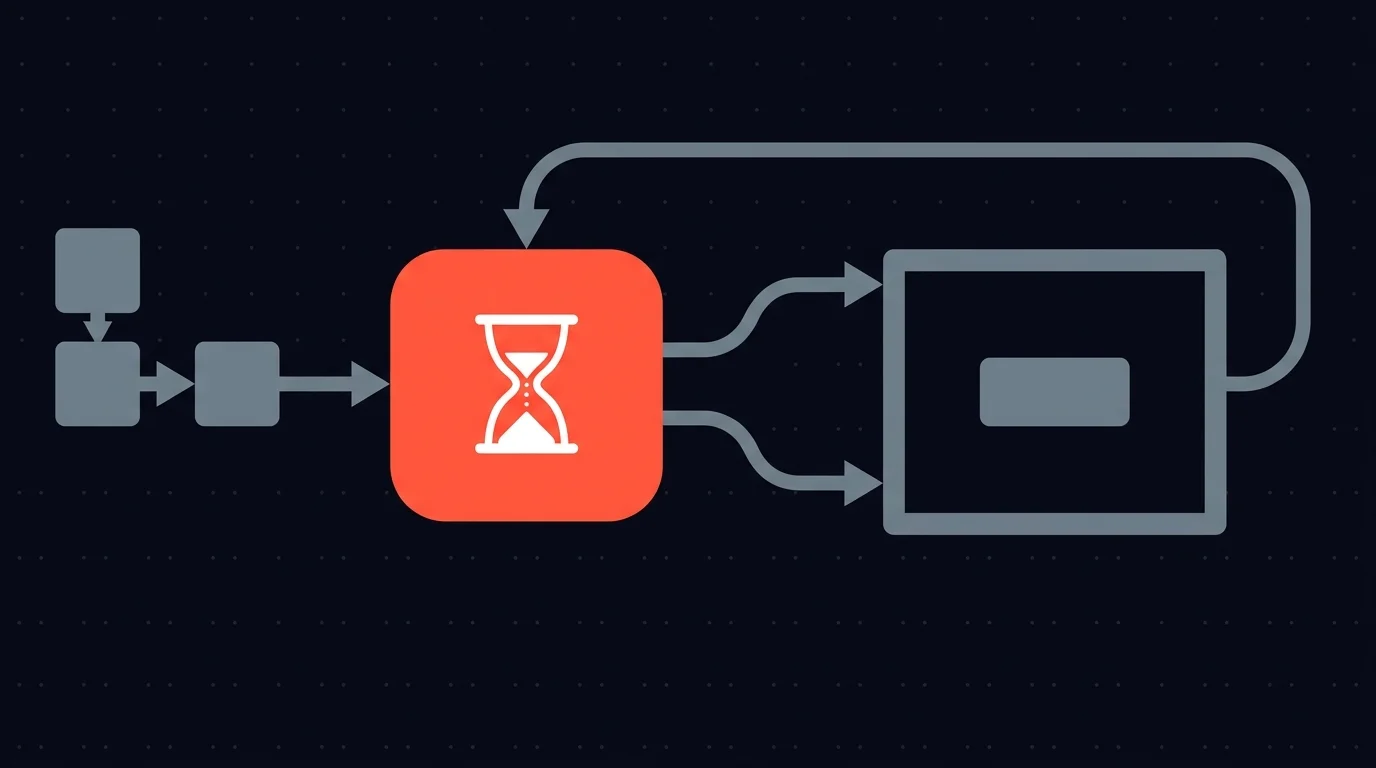
This decouples the notification from the response mechanism. Instead of Slack doing both, you send the review payload to an external system and wait for an HTTP callback. More flexible. More work.
How to set it up
Step 1: Trigger and content generation. Same as Approach 1.
Step 2: Configure an HTTP Request node to send the review payload.
This node sends everything the reviewer needs to whatever system you have built (an internal tool, a Retool dashboard, a custom web app):
Node: HTTP Request
Method: POST
URL: https://your-review-app.example.com/api/reviews
Headers:
  Content-Type: application/json
  Authorization: Bearer {{ $env.REVIEW_APP_TOKEN }}
Body (JSON):
{
  "callback_url": "{{ $node['Wait for Webhook'].webhookUrl }}",
  "workflow_id": "{{ $workflow.id }}",
  "execution_id": "{{ $execution.id }}",
  "content": {
    "type": "email_draft",
    "to": "{{ $json.recipient }}",
    "subject": "{{ $json.subject }}",
    "body": "{{ $json.body }}"
  },
  "actions": ["approve", "reject", "request_revision"]
}
The key field is callback_url. Your review system POSTs to that URL when the reviewer makes a decision. This is how the workflow resumes.
Step 3: Configure the Wait for Webhook node.
Node: Wait for Webhook
HTTP Method: POST
Response Mode: Last Node
Timeout: 24h
On Timeout: Continue (output separate branch)
Each execution gets a unique URL. When your review system calls it, the workflow picks up from where it paused.
Step 4: Branch on the response with a Switch node.
Node: Switch
Mode: Rules
Property: {{ $json.body.action }}

Rules:
  - "approve"           -> Output 0
  - "reject"            -> Output 1
  - "request_revision"  -> Output 2
  - Fallback            -> Output 3
If the reviewer edited fields before approving, access the changes from {{ $json.body.edited_fields.subject }} and pass the edited values downstream.
What you gain
You are no longer constrained by Slack's message format or 3-second callback window. The reviewer can use any interface you build. The callback is a standard HTTP POST -- reliable and debuggable.
What you still have to build
A review UI. The Wait-for-Webhook pattern gives you the plumbing, not the interface. You need a web page, a form, or a dashboard where reviewers see pending requests and take action. That is a separate application. It needs hosting, authentication, and maintenance.
Timeout and escalation logic. The Wait for Webhook timeout output tells you nobody responded. What you do about it is your problem:
Wait for Webhook -> (timeout branch)
  -> IF: critical workflow?
    -> YES: Send notification to backup reviewer, start new Wait for Webhook
    -> NO: Auto-reject, log timeout, notify requester
Each timeout scenario needs its own branch. These branches only fire in edge cases -- the exact cases that cause the most damage when unhandled.
Routing logic. If different request types need different reviewers (HR approvals go to HR, financial approvals go to finance), you build that with Set nodes, IF nodes, and database lookups. More nodes, more maintenance.
No centralized view. If you have 10 workflows using this pattern, there is no single place showing all pending approvals. Each workflow is its own island. A reviewer responsible for approvals across multiple workflows has to check multiple systems.
Verdict: Solid for a single workflow with specific requirements that justify the investment in a custom review UI. Becomes expensive to maintain once you scale to multiple workflows or need escalation.
Approach 3: An approval control layer for n8n
Approaches 1 and 2 both ask you to build approval infrastructure beside your n8n workflows. That works until the review layer becomes the most complicated part of the system. Rude, given it started life as "just add an approval button."
Humangent centers on the third approach: an approval control layer for n8n workflows that takes the infrastructure piece off your plate. This section describes the Humangent model.
The idea, in one sentence: your n8n workflow offloads the routing, notifications, timeouts, escalation, and audit trail to the inbox, and you keep a clean Humangent node -> Wait for Webhook pattern inside n8n.
What Humangent Prioritizes
These are the product principles behind the model.
- Reviewers as people, not channel IDs. Instead of hardcoding
U08XXXXin Slack or a numericchat_idin Telegram, workflows route to a person or a team ("alice", "team-finance"). Reviewers link their own Slack / Teams / Telegram / email to their account and pick how they get pinged -- including setting a backup when they go on leave. - A centralized view of pending decisions. One inbox across all workflows, so a reviewer is not hopping between five Slack channels and three internal tools.
- Automatic, multi-step escalation on timeout. If the primary reviewer does not act within a deadline, remind, reassign to a backup, then escalate up the chain -- as configuration, not a second workflow.
- Multi-level approval chains. For cases that need sequential sign-offs (team lead -> manager -> finance), the platform handles the chain without duplicating Send-and-Wait nodes.
- A built-in audit trail. Who was assigned, who opened the request, when, what they edited, what action they took. Logged automatically, with no Slack search archaeology required.
- Approve with edits, by default. The same Custom Form editability that native Send-and-Wait offers, on a reviewer UI that knows about routing, escalation, and who saw what. Edits carry into the audit trail and the next node.
- n8n-native integration. The integration is centered on the dedicated Humangent node and a callback into your workflow.
What it would look like on the n8n canvas
In Humangent, the n8n side looks almost identical to Approach 2:
Node: Humangent
Operation: Create review request
Fields:
{
  "callback_url": "{{ $node['Wait for Webhook'].webhookUrl }}",
  "title": "Review AI-drafted email to {{ $json.recipient }}",
  "content": { "to": "...", "subject": "...", "body": "..." },
  "editable_fields": ["subject", "body"],
  "actions": ["approve", "reject", "request_revision"],
  "assignee": "content-team",
  "timeout": "4h",
  "escalate_to": "team-lead"
}
Wait for Webhook, Switch node, and downstream branches stay the same as the DIY approach. The routing, reviewer UI, timeout handling, escalation, and logging live in the managed service, keeping the n8n canvas cleaner.
Honest note on status
Phase 0 users help prioritize the product model. If you are weighing it against a DIY build today, assume the DIY cost is real and concrete, and the approval-control path is active but still pre-launch. If that mismatch matters for your timeline, stick with Approach 1 or 2 for now. If it does not, early access is the most direct way to influence what ships.
Practical patterns that apply regardless of which approach you pick
A few node-level patterns are useful no matter which of the three paths you take. Treat these as the default checklist for any approval step.
Include enough context in the review payload. The reviewer needs to make a decision without flipping between tabs. Include the source record ID, the prompt that produced the draft, the upstream data the AI saw, and a link back to the full record in your system. If the context is too large to include inline, include a short summary plus a link.
Use editable fields, not approve-or-reject-only. If the reviewer can only say yes or no, every small AI mistake becomes a full round-trip: reject, regenerate, re-review. If the reviewer can edit the subject line or tweak a paragraph before approving, the small mistakes never turn into workflow loops. Structure your payload so the reviewer's response can carry back changed fields, and use those in the downstream nodes.
Always set a timeout on Wait for Webhook. The default is no timeout, which means a forgotten approval hangs an execution forever. Pick a realistic number (4h for routine reviews, 24h for weekend-tolerant cases, 72h as an outer bound) and handle the timeout branch explicitly.
Log every decision to your own store. Even if you use a platform that provides an audit trail, write a row to your own database, a Google Sheet, or an Airtable. When compliance asks six months from now, you want the answer to live somewhere you control.
Test the callback path before you trust it. Before you hand an approval workflow to a real reviewer, POST to the Wait for Webhook URL yourself with a synthetic payload (cURL or Postman) and watch the execution resume. It is the fastest way to catch a broken Switch condition or a missing field.
These patterns cost you maybe 20 minutes of extra setup per workflow and save you hours of debugging when something goes sideways.
Comparison: which approach fits your situation
| Native Send-and-Wait | Wait-for-Webhook (DIY) | Managed tool (target state) | |
|---|---|---|---|
| Setup time | ~15 minutes | 2-4 hours + building a review UI | Intended to be ~30 minutes |
| Reviewer experience | Notification + browser form page (Custom Form supports editable fields) | Whatever you build | Dedicated review inbox (design goal) |
| Reviewer identity | Channel-specific hardcoded ID per node (Slack user ID, Telegram chat_id, Teams object ID, email) |
Whatever you design | Design goal (one account per reviewer, self-serve channel choice) |
| Escalation | Single timeout branch; multi-step = DIY wiring | Manual (timeout branching) | Design goal (configured, not coded) |
| Audit trail | Execution logs only | Whatever you log | Design goal (built-in) |
| Multi-workflow view | No (each workflow is isolated) | No (each workflow is isolated) | Design goal (centralized inbox) |
| Maintenance burden | Low while reviewers and workflows are few | Medium (custom UI + timeout logic) | Intended to be low |
| Lock-in | Low (native n8n nodes) | Low | Low (dedicated n8n node) |
The "target state" column describes the Humangent model. Weigh it accordingly.
Starter template: AI email approval workflow
Here is a complete workflow structure for the most common case -- reviewing an AI-drafted email before sending. This structure works with any of the three approaches; only the "send draft to review system" step changes.
[Schedule Trigger] (every 15 min)
    |
[HTTP Request: Fetch pending email tasks from CRM/database]
    |
[AI Agent: Draft email based on task context]
    |
[HTTP Request: Send draft to review system]
    |
[Wait for Webhook] (timeout: 24h)
    |
[Switch: action]
    |- approve -> [Gmail: Send email using edited fields if present]
    |- reject -> [Log rejection] -> [Notify requester via Slack/email]
    |- request_revision -> [AI Agent: Revise with feedback] -> [Loop back to review]
    |- timeout -> [Auto-reject] -> [Notify workflow owner]
Timeout tip. Set a loop counter on the revision branch. Three rounds of revision is a reasonable cap. After that, route to a human to write the email from scratch.
Edited fields pattern. When the reviewer corrects the subject or body before approving, use the edited values:
To: {{ $json.body.edited_fields.to || $json.original.to }}
Subject: {{ $json.body.edited_fields.subject || $json.original.subject }}
Body: {{ $json.body.edited_fields.body || $json.original.body }}
The fallback (||) ensures the original value is used if the reviewer did not edit that field.
Common questions
Can I use n8n's built-in Send-and-Wait node instead?
That is Approach 1 in this tutorial. The native Send and Wait for Response on Slack, Gmail, Teams, Telegram, Discord, WhatsApp, and Chat covers Approval, Free Text, and Custom Form responses out of the box.
Where the operational work starts once you scale: every recipient is a channel-specific ID, reviewers cannot pick their own channel, each request is scoped to one workflow, the timeout is a branch you still have to turn into policy, and the approval-side record needs deliberate design. If none of those matter for the workflow in front of you, stay with native Send-and-Wait -- it is the right starting point.
What happens if my n8n instance restarts while a workflow is waiting? The Wait for Webhook node persists across restarts in n8n's default queue mode. The execution resumes when the callback arrives, even if the instance was temporarily down. Verify this is enabled in your n8n settings if you are self-hosting.
How do I handle approvals that need multiple sign-offs? Chain review requests sequentially. After the first reviewer approves, send a second HTTP Request to the next reviewer, followed by another Wait for Webhook. This works with any approach, but the wiring gets verbose in DIY setups. Humangent treats multi-level chains as configuration, which keeps node duplication out of the workflow.
What if the reviewer needs to see data from an external system (a CRM record, an order, a file)? Include the relevant data in the review payload. If the data is too large or sensitive to include inline, send a link to the source record. Structure the content with labeled sections so the reviewer sees everything in context without clicking away.
Is there a way to test approval workflows without waiting for real reviewers?
Use n8n's manual execution mode and send the callback yourself via cURL or Postman. POST to the Wait for Webhook URL with a test payload ({"action": "approve"}) to simulate a reviewer response and verify your downstream logic.
Related guides
- Human-in-the-loop for n8n: complete guide — overview and decision framework
- Approval control for n8n workflows — when the approval state needs a queue, owner, deadline, escalation, and audit
- n8n Send-and-Wait vs approval control — where the native node stops being enough
- n8n approval dashboard — how to see pending approvals across workflows
- n8n AI email approval: review drafts before sending — applying this pattern to outbound email
- n8n CRM approval: stop AI from overwriting customer data — applying this pattern to CRM updates
- n8n payment and refund approval workflows — financial flows with stricter rules
- n8n approval timeouts and escalation — handling when reviewers do not respond
- Multi-level approval workflows in n8n — sequential sign-offs across teams
If approval state is starting to sprawl across Slack, email, Wait nodes, webhooks, and paused executions, Humangent is the approval control layer for n8n workflows — every high-risk action gets an owner, deadline, editable review step, decision record, and audit trail before n8n writes into another system. Join the waitlist at humangent.io. Founding-team pricing for waitlist members.
Related Humangent resources
Humangent is for teams using n8n that need approval routing, escalation, multi-level sign-off, editable review fields, and a decision record before a workflow writes into another system.
The core pattern is simple: n8n sends the request, the reviewer sees the context, the reviewer chooses or edits the decision, and n8n resumes from a callback with a record attached. That keeps approval logic out of fragile Slack threads and makes the human decision visible to the team that owns the outcome.
These guides cover where to place human checkpoints, how to handle timeouts, when to route to another reviewer, what to record for audit, and when n8n built-in approval options are enough. The goal is practical workflow control for teams past the prototype stage.
For simple one-reviewer workflows, n8n built-in approval options can be enough. The need for a separate approval control layer shows up when several workflows compete for the same reviewers, when a backup reviewer needs to take over on a deadline, or when the team lead needs to reconstruct the decision after the workflow has already written to another system.
Humangent centers on that team operating model: one reviewer account across workflows, configurable routing, and a decision trail that belongs to the approval process. No scattered execution logs and chat-message archaeology.